> ## Documentation Index
> Fetch the complete documentation index at: https://docs.standardcomputers.net/llms.txt
> Use this file to discover all available pages before exploring further.
# Contacts
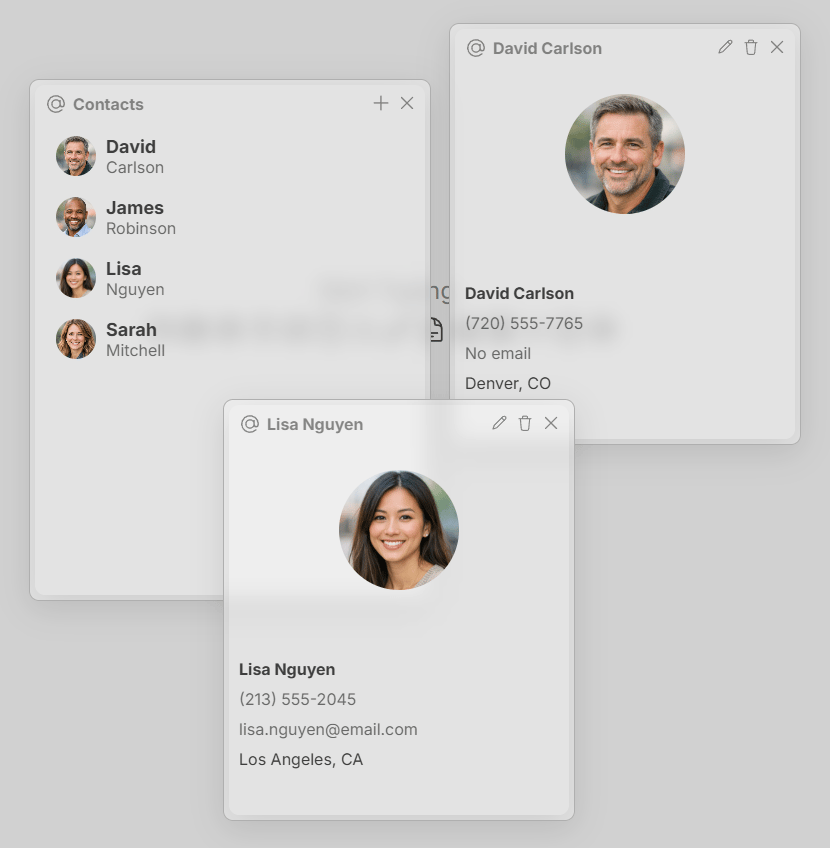
The Standard System can be used to store and manage your personal contacts in a centralized, self-hosted environment. Keep names, phone numbers, emails, and other details organized and accessible across your devices without relying on external services.
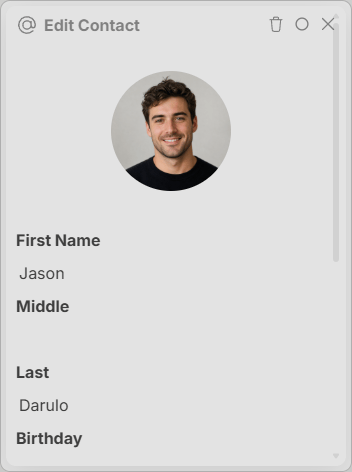
The Contacts interface allows you to create, edit, and manage your contacts, including uploading photos. Change history is enabled on contacts, so you lookback on previous details.
 ## Creating a Contact
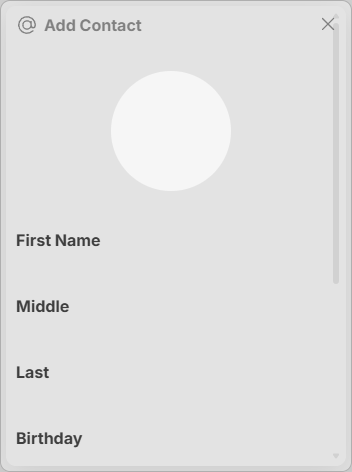
Create a contact by clicking the + button in the top right corner of the Contacts interface. Fill out the information as needed and click the create button at the bottom of the window. You can also import a contact photo by clicking the circle at the top.
Contacts have first, middle and last name, as well as birthday, address, phone number, email and company (where they work).
## Creating a Contact
Create a contact by clicking the + button in the top right corner of the Contacts interface. Fill out the information as needed and click the create button at the bottom of the window. You can also import a contact photo by clicking the circle at the top.
Contacts have first, middle and last name, as well as birthday, address, phone number, email and company (where they work).
 ## Viewing a Contact
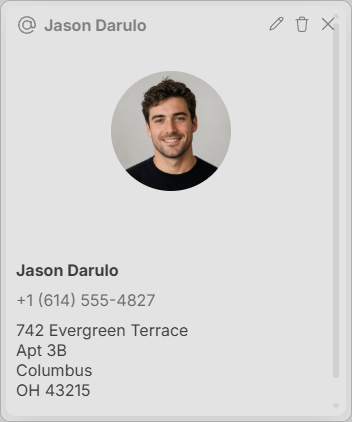
View a contact by clicking on it in the Contacts interface. This will open a window with all the information about the contact.
## Viewing a Contact
View a contact by clicking on it in the Contacts interface. This will open a window with all the information about the contact.
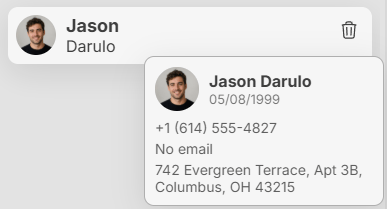
 Hover over a contact to see a preview of their information.
 ## Modifying a Contact
 ### Deleting a Contact
Like other interfaces, if you're in the view or modify window, you can delete the contact by clicking the trashcan in the top right corner of the window.
## Shortcuts
| Action | Shortcut |
| -------------- | ---------- |
| Save Contact | Ctrl + S |
| Modify Contact | Ctrl + M |
| Delete Contact | Ctrl + Del |
### Deleting a Contact
Like other interfaces, if you're in the view or modify window, you can delete the contact by clicking the trashcan in the top right corner of the window.
## Shortcuts
| Action | Shortcut |
| -------------- | ---------- |
| Save Contact | Ctrl + S |
| Modify Contact | Ctrl + M |
| Delete Contact | Ctrl + Del |